Add Your Payment Portal to Your Website
On this page
Get your portal link
-
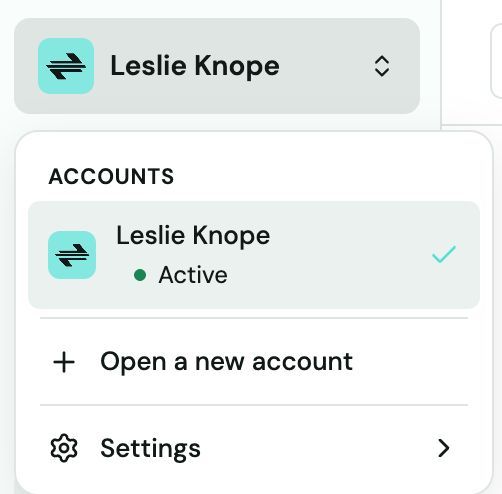
Go to Settings → Payment Portal.
-
Copy your unique Truss payment portal URL.
Option 1 — Add a button to your website
Paste this HTML code wherever you want the payment button to appear on your site. Replace YOUR_PORTAL_URL with your actual Truss portal link:
<a href="YOUR_PORTAL_URL" target="_blank"
   style="display:inline-block;padding:12px 24px;
          background:#1DB89F;color:#fff;
          border-radius:8px;text-decoration:none;
          font-weight:bold;">
  Pay Invoice Online
</a>
Option 2 — Paste as a plain link
Simply paste your portal URL into any page on your website. Most website builders (Wix, Squarespace, WordPress) let you add a button linked to any URL.
Option 3 — Add to your email signature
Include your portal link in your email signature so every email you send has a payment option:
"Pay invoices online: [your portal URL]"
Tip: The payment portal works on mobile. Customers can pay from their phone without downloading anything.