Deposit a Check — App or Dashboard
On this page
You can also start a check deposit from the Truss web dashboard — useful if you're already working on a desktop or laptop.
⚠️ Endorse your check BEFORE depositing — this is the #1 rejection cause
- Flip the check over to the back.
- Sign your name in the endorsement area.
- Write exactly: "For Mobile Deposit at Truss Only" below your signature.
Missing or incorrect endorsement = automatic rejection. It must say at Truss, not just "For Mobile Deposit Only."
Before you deposit — checklist
- Check is endorsed correctly on the back (see above)
- Truss app is on the latest version
- Ready: a solid, dark, non-patterned surface — dark desk, dark folder, or dark construction paper
- Check is fully flattened — even a slight curl causes rejection
Method 1 — Deposit via the mobile app
-
Open the Truss app and tap Accounts.
-
Select Cash.
-
Tap Deposit Check.
-
Enter the check amount.
-
Place the check on your dark solid surface. When the camera opens, hold your phone directly above — not at an angle. All four corners must be in frame.
-
Capture the front of the check, then the back.
-
Review and tap Submit.
Method 2 — Deposit via the dashboard (desktop)
You can also start a check deposit from the Truss web dashboard — useful if you're already working on a desktop or laptop.
-
Log in to app.trusspayments.com on your computer.
-
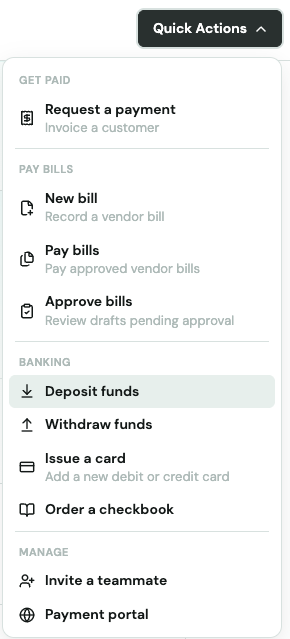
Go to Quick Actions → Deposit Funds.
-
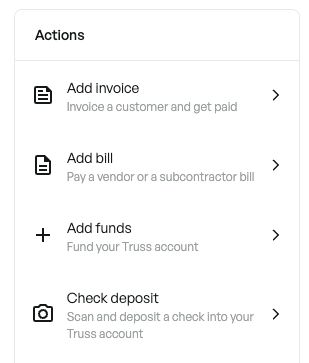
Click Deposit Check.
-
A QR code appears on your screen.
-
Scan the QR code with your phone's camera — it opens the Truss mobile deposit flow on your phone.
-
Complete the deposit on your phone using the same steps as Method 1.
When does the money appear?
Deposited checks become Truss available within 1 business day — meaning you can use the funds right away for bill payments and your Truss charge card. Funds take 4 business days to fully settle, at which point they can be transferred to an external account. Keep in mind that if a check is reversed after the funds are spent, your account can go negative.
Tip: If the camera snaps instantly or shows a black screen: restart your phone → check camera permissions (Settings → Apps → Truss → Camera → Allow) → update the app.