Edit, Cancel, or Refund an Invoice
Edit an invoice
You can edit an invoice that is Unpaid. Once a payment has started processing, editing is no longer possible.
-
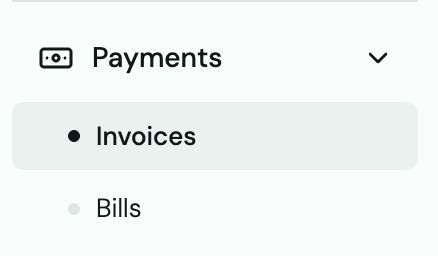
Go to Payments → Invoices.
-
Select the invoice.
-
Select the ⋯ button next to Copy payment link, then select Edit invoice.
-
Make your changes and save. The customer will be notified if you choose to send an update.

Heads up: If the invoice came from QuickBooks, edit it in QBO — it will sync to Truss within 1–3 minutes. Editing directly in Truss for QBO invoices may cause sync conflicts.
Cancel an invoice
Invoices can only be cancelled when they are in Unpaid status and payment has not started processing.
-
Select the invoice.
-
Select the ⋯ button next to Copy payment link, then select Cancel invoice.
-
Confirm. The customer is notified.
Refund an invoice
Truss does not have a direct "Refund" button for invoices. To refund a customer:
-
Add your customer as a vendor in the Bills section.
-
Create a bill payment to them for the refund amount.
-
Send payment via direct deposit to their bank account.
Tip: This takes about 2 minutes. Go to Bills → Add Vendor → enter customer's name and bank details → create and send the bill.