Export Your Transaction History
On this page
When to export your transactions
- Sharing data with your accountant or bookkeeper
- Reconciling with QuickBooks or another accounting tool
- Preparing 1099s for subcontractors
- Auditing payments for a specific job or vendor
How to export
-
Go to Transactions in the left sidebar.

-
Use the date range filter to select the period you want (e.g., Q1 2026, full year 2025).
-
Optionally filter by transaction type (incoming, outgoing, card) or by vendor/customer.
-
Click Export → choose CSV (for spreadsheets).
-
The file downloads to your computer.
What's included in the export?
Each row in the CSV includes:
- Date and time of transaction
- Description / merchant name
- Amount (positive = incoming, negative = outgoing)
- Transaction type (ACH, card, wire, check)
- Status (Completed, Pending, Failed)
- Running balance (cash account exports only)
- Tags / expense categories (if you've tagged transactions)
Tip: Tag your transactions consistently throughout the year — the tags show up in the CSV export, making it much easier for your accountant to categorize everything.
Export card transactions separately
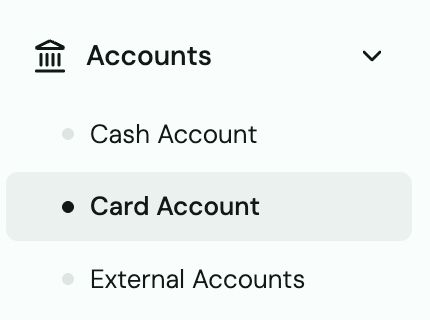
Card statement exports are separate from cash account exports. Go to Accounts → Card → Statements and download the monthly PDF or CSV for card activity.