Fix a Failed Bill Payment
On this page
Common error codes and fixes
- "Unable to Locate Account" (UTLA) — the vendor's routing or account number is wrong. Ask them to verify their bank details and update in Truss (Bills → Vendors → select vendor → Edit).
- "Account Closed" — the vendor's bank account has been closed. Get their updated banking information.
- "Return: Insufficient Funds" — your Truss balance was too low when the payment was processed. Check your available balance and retry.
- "Invalid Routing Number" — the 9-digit routing number entered is not valid. Confirm with the vendor.
How to retry a failed payment
-
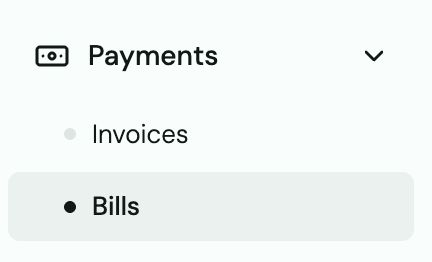
Go to Bills.
-
Select the failed bill (it will show a red status).
-
Fix the issue (update vendor bank details if needed).
-
Click Retry Payment.
Cancel a bill
Bills can be cancelled if they have not yet been accepted by the vendor.
-
Select the bill.
-
Click Cancel Bill.

Heads up: Once a vendor has accepted a payment and bank details are verified, the bill cannot be cancelled. Contact support immediately if you need to stop a payment in progress.
Mailed check returned with no reason
If Truss mailed a check to a vendor and it was returned, the bill may show "Not available for check payments" or simply a Returned status with no explanation. This usually means:
- The vendor's mailing address is incorrect or undeliverable
- The vendor cannot receive checks at that address
- The bank rejected the check for a reason not communicated back to Truss
Heads up: Contact support@trusspayments.com with the bill ID. Funds from a returned check are credited back to your account — do not resend payment until support confirms the funds have returned.