Invite Your Team & Set Permissions
User permission levels

Truss has five permission tiers. Assign the right level to each team member:
- Admin — full access: all payments, cards, settings, team management
- Bookkeeper — view and manage transactions, statements, and reconciliation; cannot send payments
- Sales Representative — create and send invoices; collect payments; limited card access
- Project Manager — manage bills and invoices for assigned projects
- Employee — card use and receipt uploads only
How to invite a team member
-
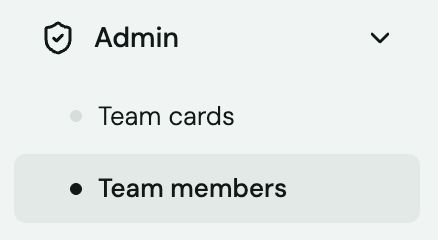
Click Admin in the left sidebar.
-
Select Team members.
-
Click Invite User (top right).

-
Enter their email address and select their permission level.
-
Click Send Invite. They'll receive an email to set up their access.
Remove a team member
-
Go to Settings → Team.
-
Click the team member's name.
-
Click Delete. Their cards are deactivated immediately.
Heads up: Removing a team member immediately deactivates all their physical and virtual cards. Pending transactions on those cards will still settle normally.