Set Up Your Payment Portal
On this page
What is the payment portal?
Your Truss payment portal is a custom link where customers can pay any of your open invoices. It's like a payment landing page for your business. Customers don't need a Truss account to pay.
Activate your portal link
-
Go to Settings.
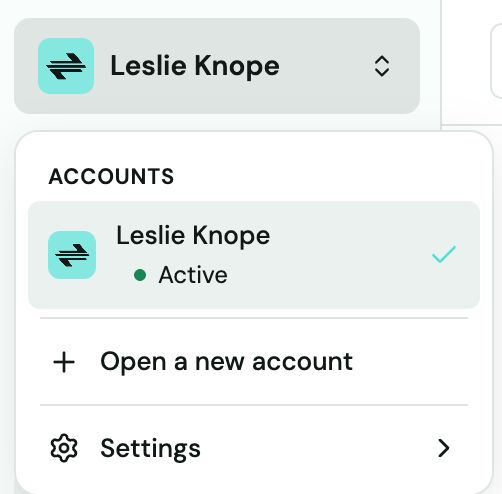
-
Click Payment Portal.
-
Copy your unique portal URL.
Share your portal
- Paste the link in invoice emails, texts, or your email signature
- Embed it on your website (see: "Add Payment Portal to Your Website")
- Add it to your QuickBooks invoice template
How customers pay through the portal
-
Customer opens the link.
-
Enters their email address.
-
Receives a 6-digit verification code (check spam if missing).
-
Sees their open invoices in the Unpaid tab.
-
Selects an invoice and pays by bank transfer or card.
Tip: Every payment through the portal includes a platform fee of 3.25% + $0.30, and the total your customer sees includes it. Pay by bank transfer (ACH) and we waive it.
Custom payments
By default, customers can also submit a custom payment amount — useful for deposits or partial payments. Toggle this on/off in Settings → Payment Portal → Custom Payments.
Heads up: Custom payments (amounts that differ from the invoice total) are not automatically matched to invoices in QuickBooks. You'll need to apply them manually in QBO.