Bill Approval Workflow — Require Team Sign-Off
On this page
What is the approval workflow?
If you have team members with Limited access, bills they create must be approved by an Admin or Owner before payment is released. This prevents unauthorized or accidental payments.
How approvals work
-
A team member with Limited access creates a bill. Instead of a Pay button, they see "Submit for approval" — clicking it sends the bill into Pending Approval status.
-
An Admin or Owner receives a notification. When they open the bill, they see an "Approve bill" action in the bill drawer.
-
Owners also have a split-button when creating bills: choose Pay now (immediate) or Save for approval (routes it through the approval queue).
-
Approve = payment proceeds. Reject = bill is cancelled. The team member is notified of the decision.
Tip: Owners can also use the split-button to intentionally route their own bills through approval — useful for double-checking large payments.
Approving or rejecting a bill
-
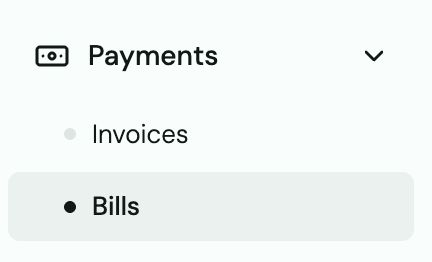
Go to Bills → Pending Approval to see all bills waiting for review.
-
Click a bill to see full details: vendor, amount, payment method, memo.
-
Click Approve to release the payment, or Reject to cancel with a note.
-
The team member is notified of the decision.
Tip: Use with multi-bill pay
You can approve multiple pending bills at once from the Pending Approval queue — select all and click Approve All to batch-release them.