Edit or Cancel a Bill Before It's Sent
On this page
When you can edit a bill
You can edit a bill while it is in Unpaid or Pending Acceptance status — before the vendor has accepted the payment. Once a bill is accepted and processing, it cannot be edited or cancelled.
How to edit a bill
-
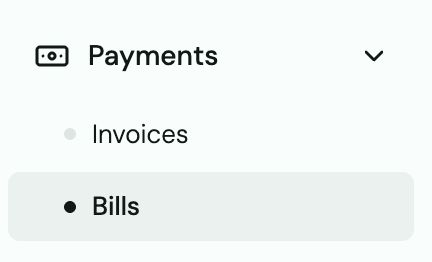
Go to Bills in the left sidebar.
-
Find the bill you want to edit and click on it to open the bill drawer.
-
Select Edit bill.
-
Make your changes — you can update the amount, due date, vendor, payment method, or memo.
-
Click Save changes.

Tip: If the bill came from QuickBooks and you need to change the amount, update it in QBO first, then use the Resync option in Truss to pull in the updated bill.
How to cancel a bill
-
Open the bill from the Bills list.
-
Select Cancel bill.
-
Confirm cancellation.
Heads up: Cancelling a bill that was paid by card follows the platform fee policy. If the payment was already processed by Stripe, the platform fee may not be refundable. Cancel bills before the vendor accepts if possible.
Re-opening a paid QBO bill for additional payments
If a bill came from QuickBooks and is marked Paid in Truss but you need to send an additional payment against it:
-
Update the bill in QuickBooks (add the new line item or increase the amount).
-
In Truss, find the bill and select Resync.
-
This moves the bill from "Paid" back to "Partially paid" so you can send the remaining amount.