Pay a Vendor — Direct Deposit or Mailed Check
On this page
Add a vendor first
-
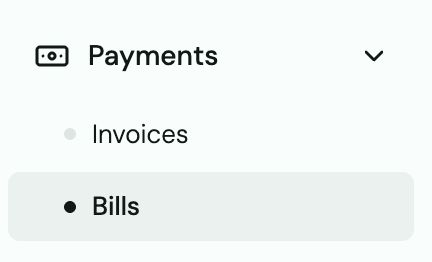
Go to Bills in the left sidebar.
-
Click Search or Add a vendor.
-
Enter their name, email, and phone number.

Create and send a bill (direct deposit)
-
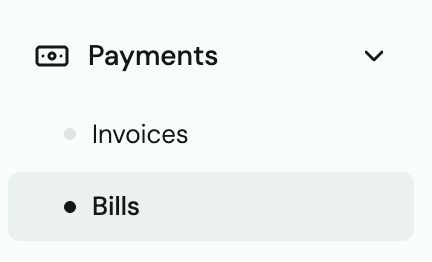
Go to Bills → Create Bill.
-
Select the vendor.
-
Enter the description and amount.
-
Choose Direct Deposit (ACH).
- Click Done.
The vendor receives an email or text to accept the payment and enter their bank details. Once accepted, funds arrive in 1–2 business days.
Send payment by mailed check
-
Create a bill as above, but select Mailed Check as the payment method.
-
Confirm the vendor's mailing address.
-
Submit. A physical check is mailed by Truss — allow 5–7 business days for delivery.
Heads up: Checks cannot be cancelled once mailed. Verify the vendor's address carefully before submitting.
What the vendor sees
Vendors receive an email with an "Accept Payment" button. They click it, verify their phone number via SMS code, and enter their bank details. No Truss account required.
Heads up: Vendors with landline numbers cannot receive SMS verification codes. Workaround: ask for a mobile number, or contact support to send payment via mailed check instead.