Add Your Truss Payment Link to a QBO Invoice Template
On this page
Why add the payment link to your QBO template?
When you email invoices directly from QuickBooks, customers see a QBO-generated email — not a Truss email. Adding your Truss portal link to the QBO invoice template means every invoice you send from QBO automatically includes a way for customers to pay through Truss.
Add the link to your QBO invoice template
-
In QBO, click the Gear icon → Custom Form Styles.
-
Select your invoice template and click Edit.
-
Go to the Emails tab.
-
In the email body, add a line like:
"To pay this invoice online, visit: [YOUR TRUSS PORTAL URL]" -
Save the template.
Tip: Copy your Truss portal URL from Settings → Payment Portal in Truss before starting this.
Alternative — add a payment button via QBO invoice settings
-
In QBO, go to Settings → Payments.
-
Make sure QBO's built-in payment buttons are disabled (so customers use Truss, not QBO's payment processor).
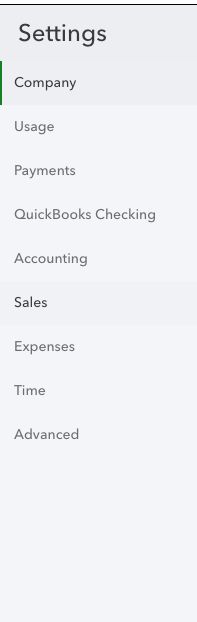
3. See article: "Disable QBO Credit Card & ACH Payments" for how to turn these off.