How to Issue & Order a Physical Truss Card
On this page
Three ways to get a teammate a physical card, plus how activation and control work once it arrives.
Three ways to issue a physical card
These three paths are specifically for issuing a physical card — use whichever is closest to what you're already doing.
1. Quick Actions → Issue a card
From anywhere in the dashboard, open Quick Actions in the top right and choose Issue a card under Banking.
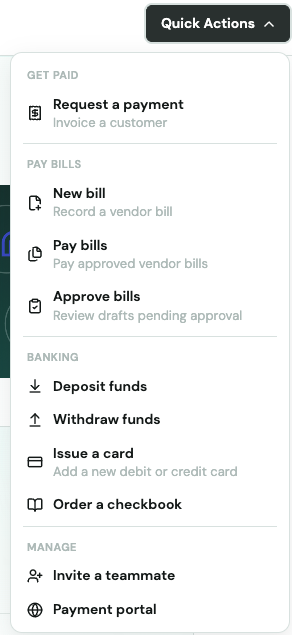
Pick the person the card is for, then select Physical Charge Card and confirm the mailing address.
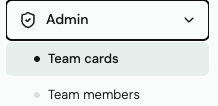
2. Admin → Team Cards
Go to Admin → Team Cards and click Issue card.

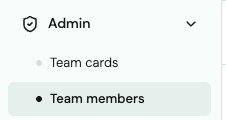
3. Admin → Team Members → Invite User
If the person doesn't have an account yet, go to Admin → Team Members, click Invite user, and check Ship this user a card — this issues them a physical card as part of onboarding.

Delivery time
Physical cards typically take 5–7 business days to arrive.
One physical card per person
Each team member can hold just one physical card. Virtual cards are issued the same way — through these same three paths — but since there's no limit on how many a person can have, they get their own dedicated article: Create & Manage Virtual Cards.
Activating the physical card
Activation happens from the team member's own account, not the admin's. Once signed in, they'll go to My Card → Overview, where a banner appears until the card is activated.
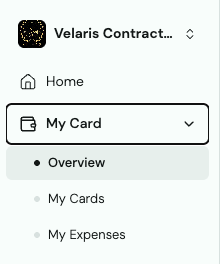
They'll click Activate card and enter the card details as prompted once it's arrived.
Who controls the card after activation
Once the physical card is activated, the admin has control of the card — spend limits, freezing, and closing are all managed from Admin → Team Cards or Team Members from that point on.