Truss Cards Explained: Everything You Need to Know
On this page
Your Truss card is a charge card — it draws from your cash balance, not a credit line. Here's how it works, plus where balances, spend, rewards, and team controls live in your dashboard.
First, the basics: this is a charge card
A Truss card is a charge card, not a credit card — it works like a debit card, drawing straight from your Truss cash balance rather than a line of credit. There's no credit check to get one, and your spending limit is simply whatever cash is available in your account. The card balance is repaid every business day: at the end of each business day, whatever's been charged is automatically paid off from your Truss cash account.
Home Dashboard
This is the first screen clients see after logging in. It gives an at-a-glance snapshot of both accounts side by side — Cash Account and Card Account — along with balances, 30-day activity, and quick links into each one.
The Card Account card on the right shows what's available to spend and confirms whether a card payment is due — this is the fastest place to check before making a purchase.
Your Card Account
Your card balance, payoff frequency, and card statements all live under Accounts → Card Account in the left-hand navigation.
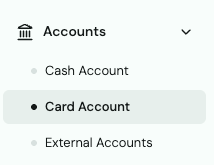
From here you can see how much is available to spend, confirm the payoff frequency (daily auto-pay), and download past statements.
Reviewing Expenses
Click Expenses in the sidebar to see card spend across your whole team in one place.

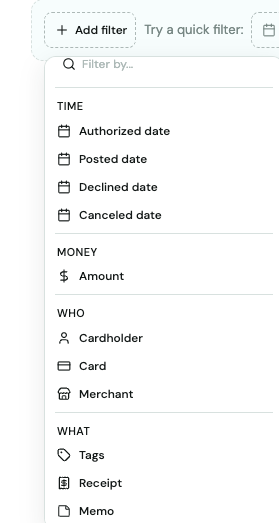
The Expenses page totals up spend, flags missing receipts or memos, and lets you filter down to exactly what you're looking for — by cardholder, card, merchant, date, tags, and more.
Your Own Cards
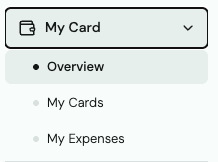
To see just your own cards and personal spend, use the My Card menu — it covers your Overview, My Cards, and My Expenses.
Team Cards & Spend Limits
Admins manage everyone else's cards and limits from the Admin menu, which splits into Team Cards and Team Members.
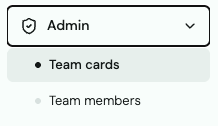
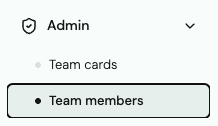
To change a monthly expense limit: go to Admin → Team Members, click on the user, then click Edit user to open their monthly expense limit field.
To close a card: go to Admin → Team Cards, select the card, and use the Close action in the card detail panel.
Rewards
Card rewards have their own dedicated spot in the sidebar — look for the Rewards tab to check your points balance and see what's redeemable. You earn 2 points for every dollar spent on all eligible card purchases.
Quick reference
Card balance → Accounts → Card Account. Team spend → Expenses. Your own cards → My Card. Team cards → Admin → Team Cards. Spend limits → Admin → Team Members → select user → Edit user. Points balance → Rewards.