Receipts, Expense Tags & Missing Receipt Reminders
On this page
Upload a receipt for a card purchase by text link or in the app, add expense tags, and send missing receipt reminders (Admins and Bookkeepers).
Upload a receipt for a card purchase
Method 1 — Text link: After a purchase, the cardholder receives a text with a receipt upload link. Click the link and snap a photo of the receipt.
Method 2 — In the app:
-
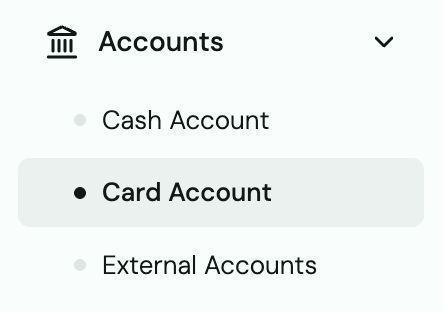
Go to Accounts → Card.
-
Find the transaction and tap it.
-
Tap Upload Receipt and select a photo or file.
Add or edit expense tags
-
Go to Accounts → Card and select a transaction.
-
Tap Add Tag or the existing tag to edit it.

-
Create a new tag or select an existing one (e.g., "Project 12", "Materials", "Travel").

Tip: Tags carry over to QuickBooks Online automatically — use consistent tag names for clean reconciliation.
Send missing receipt reminders (Admins/Bookkeepers)
-
Go to Accounts → Card.
-
Click Missing Receipts to see all transactions without a receipt.
-
Select the transactions and click Send Reminder.
-
An email is sent to the cardholder prompting them to upload.