Truss + JobTread Integration — Existing Truss Account with QuickBooks Online
On this page
Here's a look at JobTread's Integrations page — this is where you'll connect Truss (Settings → Integrations):
How Truss, JobTread & QBO work together
This article is for clients who currently use QuickBooks Online (QBO) with Truss and are now also connecting JobTread. It assumes you already have Truss connected to QuickBooks Online and it's actively working — bills are pushing into Truss and your bank feed is reconciling. If you don't have that connection yet, set it up first; this article only covers adding JobTread on top of it.
Before JobTread, everything ran through one path: QBO → Truss, with QBO as the source of truth for both bills and invoices. Once JobTread is connected, that path splits in two:
Invoices (new path): JobTread → Truss. JobTread is now the source of truth for invoices — QBO is bypassed entirely for invoicing.
Bills (unchanged): JobTread → QBO → Truss. QBO stays in the loop for bills; nothing changes here.
⚠️ The one rule that changes: invoicing moves to JobTread
Once JobTread is connected, stop creating or editing invoices in QBO — do that in JobTread instead. Bills still work exactly as before: create and edit those in QBO.
Truss's automated invoicing from QBO turns off
If Truss was automatically pulling in invoices from QuickBooks Online before, that automation is turned off once JobTread is connected. Invoices now come from JobTread instead — this is expected behavior, not a bug or a missing setting.
Even though JobTread now owns invoicing, keep your QBO connection active — it's still pushing your bills into Truss, keeping your bank feed reconciled between QBO and Truss, and letting JobTread know how each bill was paid (payment method flows back through QBO so JobTread's records stay accurate).
Bills can now be created right in JobTread, not just QBO — they still follow the same path, JobTread → QBO → Truss. But no matter where a bill starts, it must always be paid from your Truss account, never paid directly in QBO or JobTread. Paying from Truss keeps payment status flowing back through QBO to JobTread automatically; pay it anywhere else and that loop breaks.
⚠️ Turn Automated Invoices OFF
If you use JobTread and QuickBooks Online, Automated Invoices must be OFF. In Truss, go to Settings → Integrations and make sure the Automated Invoices toggle on the QuickBooks Online card is off.
Connect Truss inside JobTread
- Log in to JobTread as an admin.
- Go to Settings → Integrations.
- Find Truss in the list and click Connect.
- Follow the prompts to log in and authorize the connection.
You'll be asked to allow JobTread to access your Truss account — review the permissions and click Allow access.
Set your General Ledger account
This is the step people miss, and it's the most important one. Because you use QBO, set the General Ledger in both Truss and JobTread.
In Truss: go to Settings → Integrations and check your cash account shows Connected under Connected accounts. Posting its two $0.01 entries in QBO is what sets it. If it says Not connected, follow Connect QuickBooks Online to Truss.
In JobTread:
-
Go to Settings → Integrations → QuickBooks Online (separate from the Truss connection).
-
Under Payment Accounts, set both Deposit To Account and Withdraw From Account to Truss - Cash Account. This is where the General Ledger is set in JobTread.
-
Under Online Processors & Fees, turn on Specify accounts to track online payments, then set Payment Processing Deposit To to Truss - Cash Account. Save your changes.
Why this matters
The GL account ties each bill payment back to Truss and identifies the payment method used. Skip this step, and that information doesn't come through automatically — you'll need to go in and manually add the source and payment method for every bill payment yourself.
Disconnect Stripe & turn off QBO's Pay Now button
⚠️ Important
If Stripe or another payment processor is still connected in JobTread — or if QuickBooks Online's own "Pay now" button is still on — customers may see more than one Pay option on their invoice. Truss should be the only payment method available.
In JobTread:
-
Go to Settings → Integrations (or Settings → Payments, depending on your JobTread version).
-
Look for Stripe or any other connected payment processor.
-
Disconnect it, so Truss remains the only active payment method on invoices.
Once Truss is the only payment method, this is what customers will see on a JobTread invoice — the Truss option selected under Online Payment, with a single Pay Now button:
In QuickBooks Online: since QBO is connected in this setup, also confirm its own built-in "Pay now" button is turned off — otherwise customers may see an Intuit-branded payment option alongside Truss.
-
In QuickBooks Online, click the Gear icon (top right) → Account and Settings.
-
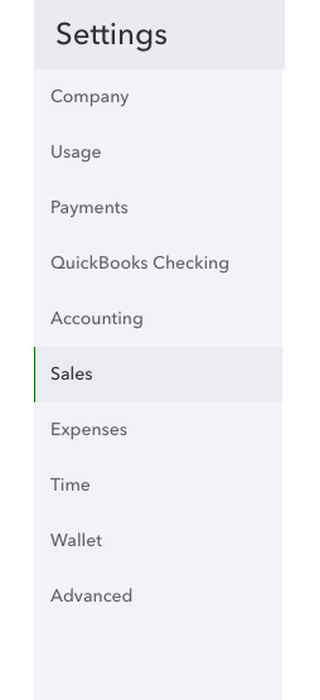
Click Sales in the left menu.
-
Find Invoice payments and click the pencil icon.
-
Turn off both Accept Credit Cards and Accept ACH.
-
Click Save, then Done.
What happens next (and why it's normal)
⚠️ Expected behavior — not an error
Once the JobTread–Truss connection is complete, any invoices in Truss that are still open or partially paid from the old QBO-sourced flow will be automatically canceled. This is normal — it's JobTread taking over as the source of truth for invoicing.
⚠️ Truss stops auto-creating invoices from QBO
Truss's automated invoicing — which previously pulled invoices in from QuickBooks Online — is turned off as part of this connection. From now on, invoices only come in through JobTread. If you notice QBO-sourced invoices are no longer appearing automatically, that's expected — not something to troubleshoot.
⚠️ Truss does not automatically bring in JobTread's existing active invoices
Making the connection does not cause Truss to automatically pull in invoices that are already Active in JobTread. Those invoices predate the connection, so they were never set up with the Truss Pay option. For any invoice that's still open or partially paid at the time you connect, you need to go into that individual invoice in JobTread and add Truss Pay as a payment option. Do this for each open or partially-paid invoice — it's a one-time step. Once the JobTread–Truss connection is made, every invoice created from that point forward has Truss Pay enabled automatically and needs no manual setup.
Invoices come into Truss once someone clicks Pay Now
A JobTread invoice shows up in Truss after someone clicks Pay Now on it, either your customer or you. Sending it isn't enough on its own. It always comes in with your customer's name and details, whoever clicks.
From here, your day-to-day workflow is simple: invoices in JobTread, bills in QBO, and Truss keeps everything paid and reconciled.
Once an invoice syncs, it shows up in Truss with a small JobTread icon next to its description — this is how you can tell an invoice originated in JobTread rather than being created directly in Truss:
Troubleshooting common issues
"I created an invoice in JobTread, but I don't see it in Truss."
Invoices show up in Truss once someone clicks Pay Now on the JobTread invoice. Check the invoice has been sent from JobTread, then open it and click Pay Now (you can do this yourself) and refresh Truss. There's no resync button. Still missing? Contact support.
"My open invoices disappeared right after I connected."
Expected — this happens once, automatically, when JobTread takes over as the source of truth for invoicing. New invoices created in JobTread will sync to Truss correctly going forward.
"My invoices that were already open in JobTread never showed up in Truss after connecting."
Expected — the connection doesn't automatically pull in invoices that were already Active in JobTread, and those invoices were created before Truss Pay existed as an option. Go into each open or partially-paid invoice in JobTread and add Truss Pay as a payment option. This is a one-time step for existing invoices only; anything created after the connection has Truss Pay enabled automatically.
"A customer paid, but I don't see it reflected in Truss."
Confirm the payment was made using the Pay button on the JobTread invoice. If it still doesn't appear after a few minutes, contact support with the invoice number.
"I accidentally created an invoice in QBO — will it sync?"
No — once JobTread is connected, QBO is no longer part of the invoice path. Delete the invoice in QBO and recreate it in JobTread instead.
"My customer sees more than one Pay button on their invoice."
Stripe (or another payment processor) is still connected in JobTread alongside Truss. Go to Settings → Integrations in JobTread and disconnect it.
"An invoice in Truss doesn't match what's in JobTread."
The invoice was likely edited in JobTread after the customer already clicked Pay and it had synced to Truss. Double-check the latest version in JobTread; if Truss still doesn't match, contact support with the invoice number.
Frequently asked questions
Do I need to stop using QuickBooks Online?
No. Keep QBO connected — it still pushes your bills into Truss and keeps your bank feed reconciling. What changes is invoicing only: that now runs through JobTread instead of QBO.
What happened to Truss's automated invoicing from QBO?
It's turned off once JobTread is connected. Truss no longer pulls invoices in from QuickBooks Online — JobTread is now the only source for invoices. This is expected, not a setting you need to fix.
What happens to invoices that were already Active in JobTread when I connect Truss?
They don't come over automatically, because they were created before Truss Pay existed as a payment option on them. For each one that's still open or partially paid, go into that invoice in JobTread and add Truss Pay as a payment option. This only applies to invoices that existed before the connection — anything created afterward has Truss Pay enabled automatically.
Where do I create invoices now?
In JobTread. Don't create or edit invoices in QBO anymore.
Where do I still create bills?
In QBO, exactly as before — bills still follow the original JobTread → QBO → Truss path.
Do I still need to set the GL account?
Yes, if you use QBO, in both Truss and JobTread. It tells Truss where a bill payment is coming from. Skipping it means payments still appear, but their source can't be traced — which breaks clean reconciliation.