Truss + JobTread Integration — Getting Started (New to Truss)
On this page
New to Truss and connecting JobTread directly, with no accounting software involved. Start here if this is your first time hearing about Truss.
Here's a look at JobTread's Integrations page — this is where you'll connect Truss (Settings → Integrations):
What is Truss?
Truss is a payments platform built for construction and contracting businesses. It's where you collect invoice payments from customers and pay your bills — all in one place. When connected to JobTread, invoices you send in JobTread can be paid directly by your customers, with payment tracked automatically in Truss.
Signing up for Truss gives you a real business checking account, with its own routing number and account number, just like a bank account. This is where your invoice payments land and your bills are paid from. You can also get cards tied to the account for day-to-day business spending.
No accounting software required
You don't need QuickBooks Online or any other accounting software to use Truss with JobTread. This article covers the direct JobTread + Truss setup, with no accounting software involved. If you do use QuickBooks Online, see Truss + JobTread Integration — Getting Started with QuickBooks Online instead.
Create your Truss account
You'll need a Truss account before anything else can happen.
-
In JobTread, go to Settings → Integrations and click Connect next to Truss — this can kick off account creation for you if you don't have one yet.
-
Follow the prompts to enter your business information and create your Truss login.
-
Complete any identity or business verification steps Truss requires — this is a standard part of setting up a payments account.
Verification can take a little time
Since Truss handles real payments, new accounts typically go through a verification step. If your account isn't fully active right away, that's normal — check back or contact support if it's taking longer than expected.
Set up Truss before you connect
⚠️ Do this first
Both items below need to be set in Truss before you connect JobTread. Connecting JobTread first and coming back to these later can cause issues with how your invoices look and link for customers.
1. Set your Payment Portal link. Log in to Truss and go to Settings → Payment Portal, then click Set Payment Portal Link.
Enter a Link ID — this becomes part of the public URL your customers use to pay (e.g. app.trusspayments.com/pay/your-link-id) — then click Set link.
⚠️ This can't be changed once set
Truss will ask you to confirm before finalizing. Choose your Link ID carefully — you won't be able to change it afterward.
2. Set your business logo. Still in Truss, go to Settings → Business and upload your business logo.
Your Payment Portal link and logo are what your customers see when they open an invoice to pay. Setting these up first makes sure invoices look right and function correctly from the moment JobTread starts sending them.
Connect Truss inside JobTread
Once the steps above are done, this takes about 2 minutes.
- Log in to JobTread as an admin.
- Go to Settings → Integrations.
- Find Truss in the list and click Connect.
- Log in with the Truss account you created above and authorize the connection.
You'll be asked to allow JobTread to access your Truss account — review the permissions and click Allow access.
⚠️ Only one Pay button
If Stripe or another payment processor is already connected in JobTread, disconnect it before going live (Settings → Integrations in JobTread). Truss should be the only Pay option your customers see.
Once Truss is the only payment method, this is what customers will see on a JobTread invoice — the Truss option selected under Online Payment, with a single Pay Now button:
How invoices sync
Invoices come into Truss once someone clicks Pay Now
A JobTread invoice shows up in Truss after someone clicks Pay Now on it, either your customer or you. Sending it isn't enough on its own. It always comes in with your customer's name and details, whoever clicks.
An invoice shows up in Truss once someone clicks Pay Now on it in JobTread. When your customer pays, the payment syncs into Truss too.
Once it syncs, that invoice shows up in Truss with a small JobTread icon next to its description — this is how you can tell an invoice originated in JobTread rather than being created directly in Truss:
Creating a bill in Truss
⚠️ Bills do not come from JobTread automatically
The JobTread + Truss connection covers invoices only. Any bill you need to pay — vendor bills, subcontractor payments, or anything else — you'll create directly in Truss.
-
From anywhere in Truss, click Quick Actions → New bill (under Pay Bills).
-
Search for the vendor you're paying, or add a new one if this is the first time you're paying them.
-
Enter the Amount and a Description (the vendor sees this).
-
Optionally set a Due date, attach the vendor's invoice, and add an internal Memo (your team only — the vendor won't see it).
-
Click Save & pay now, or save it as a draft to pay later.
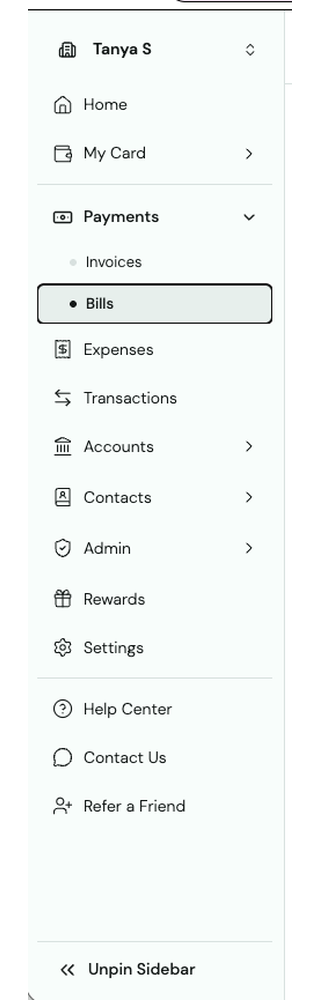
You can also get here by going to Bills in the left navigation and clicking Create bill. This same page is where you'll come back to review and pay bills once they're created.
Where to find your vendors
Every vendor you've added lives under Contacts → Vendors in Truss. This list is managed entirely inside Truss — vendors don't sync in from JobTread, so the first time you pay a new vendor, you'll add them here as part of creating the bill.
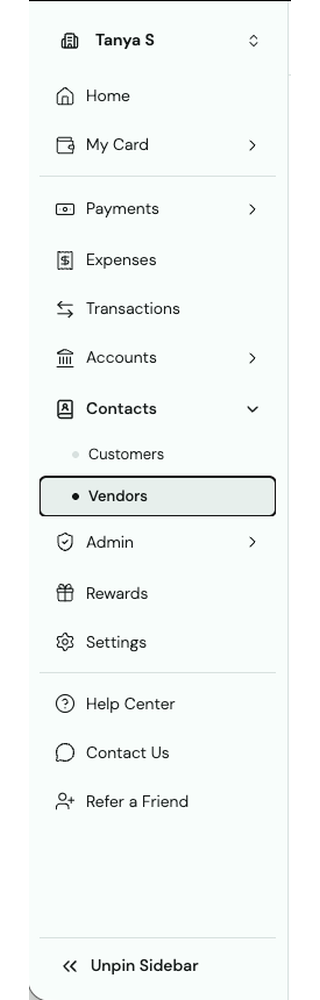
This is the opposite of how customers and invoices work: your Customers list in Truss pulls in automatically from JobTread, and invoices appear in Truss once someone clicks Pay Now on them in JobTread (see "How invoices sync" above). Vendors and bills don't have that connection — they're managed entirely inside Truss.
Troubleshooting common issues
"My Truss account isn't fully active yet."
New Truss accounts typically go through a verification step before they're fully active. Check back shortly, or contact support if it's taking longer than expected.
"I created an invoice in JobTread, but I don't see it in Truss."
Invoices show up in Truss once someone clicks Pay Now on the JobTread invoice. Check the invoice has been sent from JobTread, then open it and click Pay Now (you can do this yourself) and refresh Truss. There's no resync button. Still missing? Contact support.
"A customer paid, but I don't see it reflected in Truss."
Confirm the payment was made using the Pay button on the JobTread invoice. If it still doesn't appear after a few minutes, contact support with the invoice number. Since there's no accounting software connected in this setup, you'll also need to manually record the payment in your own bookkeeping if you keep separate books.
"My customer sees more than one Pay button on their invoice."
Stripe (or another payment processor) is still connected in JobTread alongside Truss. Go to Settings → Integrations in JobTread and disconnect it.
"I have bills to pay, but nothing is showing up automatically."
Not a bug — bills aren't automated in this setup. Create the bill directly in Truss.
Frequently asked questions
Do I need QuickBooks Online to use Truss?
No. This article covers connecting JobTread directly to Truss, with no accounting software involved.
Where do I create bills?
Directly in Truss (Bills → + New Bill). There's no bill automation — JobTread's connection only covers invoices. Your vendors live under Contacts → Vendors in Truss, not JobTread.
Can I use Stripe or another payment processor alongside Truss in JobTread?
No — disconnect any other payment processor in JobTread. Truss needs to be the only Pay button your customers see.