Truss + JobTread: FAQ
On this page
Quick answers to the most common questions about connecting Truss and JobTread — plus links to full setup guides for your specific situation.
Here's a look at JobTread's Integrations page — this is where you'll connect Truss (Settings → Integrations):
How does Truss + JobTread work?
Truss connects directly to JobTread — go to Settings → Integrations in JobTread, find Truss, and click Connect. No QuickBooks Online is required to make this connection. Once connected, JobTread becomes the source of truth for invoices: create and send invoices in JobTread, and they show up in Truss once someone clicks Pay Now on them.
You'll be asked to allow JobTread to access your Truss account — review the permissions and click Allow access.
If you also use QuickBooks Online
You can still keep QBO connected for bills — bills continue to flow QBO → Truss (or JobTread → QBO → Truss) unchanged. JobTread only takes over invoicing, not bills. See the QBO-specific guides linked below for the full walkthrough, including where to set the General Ledger account.
Which guide should I follow?
This FAQ covers the most common questions. For full step-by-step setup, use the guide that matches your situation:
- Truss + JobTread Integration — Getting Started (New to Truss)
- Truss + JobTread Integration — Getting Started with QuickBooks Online
- Truss + JobTread Integration — Existing Truss Account (No QuickBooks Online)
- Truss + JobTread Integration — Existing Truss Account with QuickBooks Online
Account & setup
Do I need a Truss account already, or can I sign up during setup?
Either works. If you don't have one yet, clicking Connect in JobTread can kick off account creation for you — you'll enter your business info and go through identity/business verification like any new payments account.
Do I need QuickBooks Online for this to work?
No. JobTread connects directly to Truss for invoicing, with or without QBO. QBO is only relevant if you also want bills to flow through it — invoicing works identically either way.
What should I set up before connecting JobTread?
In Truss, set your Payment Portal link (Settings → Payment Portal) and upload your business logo (Settings → Business) first. These control what customers see when they open an invoice to pay, so setting them up before connecting avoids invoices looking broken or unbranded.
Invoices
Invoices come into Truss once someone clicks Pay Now
A JobTread invoice shows up in Truss after someone clicks Pay Now on it, either your customer or you. Sending it isn't enough on its own. It always comes in with your customer's name and details, whoever clicks.
Why don't I see an invoice in Truss right after sending it?
Invoices show up in Truss once someone clicks Pay Now on the JobTread invoice. Check the invoice has been sent from JobTread, then open it and click Pay Now (you can do this yourself) and refresh Truss. There's no resync button. Still missing? Contact support.
How can I tell an invoice came from JobTread?
Synced invoices show a small JobTread icon next to their description in Truss, in both the invoice list and the invoice detail view.
I'm an existing QBO client — what happens to invoices I already had in Truss?
Any invoices still open or partially paid from the old QBO-sourced flow are automatically canceled once JobTread connects. This is normal — it's JobTread taking over as the source of truth for invoicing.
What happened to Truss's automated invoicing from QBO?
It's turned off once JobTread is connected. Truss no longer pulls invoices in from QuickBooks Online — JobTread is now the only source for invoices. This is expected, not a setting you need to fix.
Bills & vendors
Where do I create bills?
If you don't use QBO, directly in Truss (Bills → + New Bill, or Quick Actions → New bill). There's no bill automation without QBO — JobTread's connection only covers invoices. If you do use QBO, bills can start in either JobTread or QBO and flow through automatically, but always pay them from Truss.
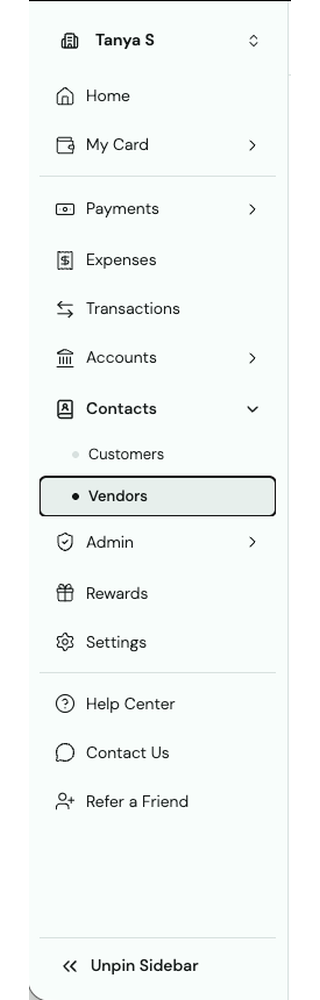
Where do I find my vendors?
Under Contacts → Vendors in Truss. Vendors are managed entirely inside Truss and don't sync in from JobTread — add a new one the first time you pay them.
Payment methods
⚠️ Only one Pay button
If Stripe or another payment processor is already connected in JobTread, disconnect it (Settings → Integrations in JobTread). Truss should be the only Pay option your customers see.
My customer sees more than one Pay button — why?
Either Stripe (or another processor) is still connected in JobTread, or — if you use QBO — QuickBooks Online's own built-in "Pay now" button hasn't been turned off yet (QBO → Gear icon → Account and Settings → Sales → Invoice payments → turn off Accept Credit Cards and Accept ACH).
Should Automated Invoices be on or off?
If you also use QuickBooks Online, Automated Invoices must be OFF. You'll find the toggle on the QuickBooks Online card in Truss under Settings → Integrations. If you don't use QBO, there's nothing to change.
Do I still need to set a General Ledger account?
Only if you use QBO. Set it in both places: in Truss, by posting the two $0.01 entries when you connect QBO, and in JobTread, under Settings → Integrations → QuickBooks Online (Deposit To Account and Withdraw From Account). If you don't use QBO, you only need the JobTread connection. It ties each bill payment back to Truss and identifies the payment method — skip it and you'll need to manually match payments yourself.
A few more common questions
Can I use Stripe or another payment processor alongside Truss in JobTread?
No — disconnect any other payment processor in JobTread. Truss needs to be the only Pay button your customers see.
My Truss account isn't fully active yet — what's wrong?
Nothing — new Truss accounts typically go through a verification step before they're fully active. Check back shortly, or contact support if it's taking longer than expected.
A customer paid, but I don't see it reflected in Truss — what do I do?
Confirm the payment was made using the Pay button on the JobTread invoice (not some other method). If it still doesn't appear after a few minutes, contact support with the invoice number.