Create & Manage Virtual Cards
On this page
Issue instant virtual cards for online purchases, subscriptions, and project-based spending — no shipping required.
What are virtual cards for?
Virtual cards are instant digital Visa cards tied to your Truss account — no waiting on the mail. They're useful for:
- Online purchases and subscriptions
- Tracking expenses by project (give each card a project nickname)
- Giving a team member spend access without handing over a physical card
Create a virtual card
There are three quick ways to issue one:
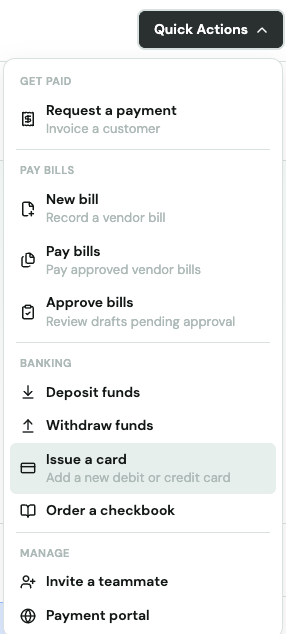
1. Quick Actions → Issue a card
Open Quick Actions, choose Issue a card, then select Virtual Charge Card instead of physical. Give it a name — like the merchant or project it's for — and it's ready to use immediately, no mailing address needed.
2. My Card → Create virtual card
If you're already looking at your physical card's overview, there's a shortcut: click Create virtual card right there to jump straight into the same flow.
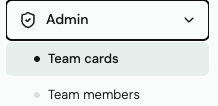
3. Admin → Team Cards
Go to Admin → Team Cards and click Issue card, then select Virtual Charge Card for the person you're issuing it to.

Instant, no shipping
Unlike a physical card, a virtual card is ready to use the moment you click Create — there's nothing to wait on.
Spending limits are set at the team member level
Virtual cards don't have their own individual limit to set. Spend is capped by the team member's monthly expense limit — the same limit that covers all of their cards. To change it, go to Admin → Team Members, select the person, and click Edit user to update their monthly limit.
Close a virtual card
Go to Admin → Team Cards, select the virtual card, and click Close in the card detail panel.
Closing is permanent — if you need one again for that project or vendor, just create a new one.